Choosing a WordPress theme is easy.
Choosing one you will still be happy with six months later is harder.
A new theme can look impressive in a demo because the demo has perfect images, carefully written text, professionally arranged sections and features selected specifically to make the design look its best.
Your website will be different.
You may have longer article titles.
Different images.
More categories.
Affiliate disclosures.
Ads.
WooCommerce.
Contact forms.
Reviews.
Comparison tables.
And a growing collection of content the theme developer never saw when creating the demo.
That is why the best WordPress theme is not necessarily the one with the most attractive preview.
It is the one that gives your real website a clean foundation without making everyday publishing unnecessarily difficult.
WordPress currently offers thousands of free themes through its official Theme Directory, so lack of choice is rarely the problem. citeturn547536search0
The problem is knowing what to check.
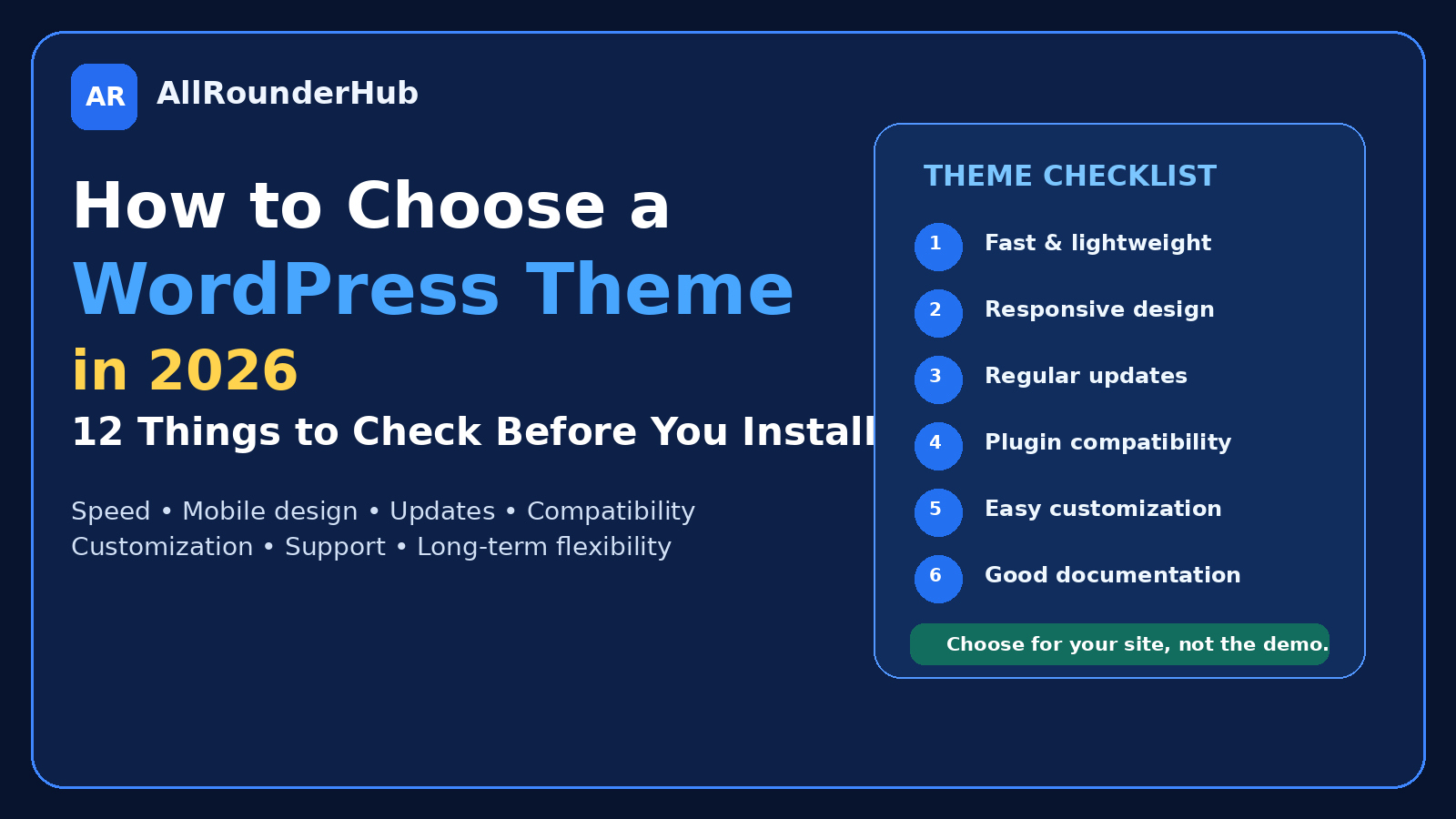
Here are 12 practical things worth looking at before installing a theme.
1. Start With the Type of Website You Are Building
Do not choose the theme first and then decide what kind of website it should become.
Do the opposite.
Write down what the site actually needs.
A content-heavy blog may need:
- comfortable article typography;
- clear categories;
- related posts;
- clean author information;
- good mobile reading;
- simple navigation.
An ecommerce site may care more about:
- product layouts;
- WooCommerce compatibility;
- checkout styling;
- product filters;
- account pages.
A portfolio website may prioritize large visuals.
A local business may need services, testimonials, contact information and strong calls to action.
The theme should support the website’s main job.
It should not determine the job.
2. Do Not Choose From the Homepage Demo Alone
Theme demos are marketing material.
That is not a criticism. It is their purpose.
But the homepage is only one page.
Before installing a theme, check how it handles:
- normal blog posts;
- category archives;
- search results;
- pages;
- comments;
- mobile navigation;
- images;
- headings;
- tables;
- long titles;
- forms.
If you run a content website, spend more time looking at the article template than the hero banner.
Visitors may see the homepage once.
A regular reader may see dozens of your articles.
3. Check Mobile Design Before Desktop Perfection
A theme can look excellent on a large monitor and become frustrating on a phone.
Check:
- font size;
- line spacing;
- menu behaviour;
- button size;
- image scaling;
- table behaviour;
- sidebar placement;
- header height.
A mobile header that consumes half the screen is not helpful just because it looks dramatic on desktop.
The same applies to giant banners, popups and oversized spacing.
Try to imagine reading a 2,000-word article on a phone.
That is a better test than asking whether the homepage looks expensive.
4. Prefer a Theme That Does Less, Well
Themes sometimes compete by adding more.
More widgets.
More sliders.
More effects.
More layouts.
More built-in tools.
That can sound like better value.
But every feature increases the amount of software the theme is responsible for.
I generally prefer a theme to handle presentation while plugins handle important functionality.
For example, changing a theme should not ideally destroy your affiliate links, SEO data, forms or business logic.
A theme should make the site look good.
It should not become the entire website.
5. Check Whether the Theme Is Actively Maintained
A theme is not a one-time design file.
WordPress changes.
PHP changes.
Browsers change.
Plugins change.
WooCommerce changes.
A theme that is no longer maintained can eventually become a compatibility problem.
Before installing one, check whether development appears active.
For themes in the official WordPress directory, you can inspect theme information directly through WordPress. The WordPress Themes Team also reviews themes submitted to the official directory for areas including licensing, security and code quality. citeturn547536search28
That does not mean every directory theme is automatically perfect for your website.
It does give you a sensible place to begin evaluating free themes.
6. Test How Much You Can Change Without Fighting the Theme
A beautiful default design is useful.
A design you can adapt is better.
Check whether you can comfortably change:
- fonts;
- colours;
- content width;
- header;
- footer;
- logo;
- navigation;
- sidebar;
- blog layout;
- buttons;
- spacing.
WordPress provides theme-management and customization tools, while the exact controls available depend on the theme being used. citeturn547536search20turn547536search26
You do not necessarily need hundreds of settings.
You need control over the parts you are actually likely to change.
Too little control becomes frustrating.
Too much control can make the theme unnecessarily complicated.
7. Check Plugin Compatibility
Your theme and plugins have to share the same website.
That makes compatibility important.
Think about the plugins your site depends on.
For example:
- WooCommerce;
- SEO plugins;
- contact forms;
- caching;
- multilingual tools;
- page builders;
- membership plugins;
- LMS plugins.
If WooCommerce is central to the business, check whether the theme explicitly supports it.
If you use a particular page builder, confirm that your intended workflow is supported.
Do not install a theme simply because a random screenshot looks similar to the site you want.
Your actual plugin stack matters.
8. Do Not Ignore Performance
A theme does not control website speed by itself.
Hosting, images, plugins, caching, scripts and databases also matter.
But the theme is still part of every page.
A theme packed with features you do not use can add unnecessary complexity.
Look for a theme with a reputation for being reasonably lightweight and well maintained rather than assuming every performance problem can be fixed later with another optimization plugin.
The cleaner the starting point, the easier optimization usually becomes.
And remember:
A minimal theme does not need to look minimal.
Good design and sensible performance are not opposites.
9. Free vs Premium: Do Not Decide Too Early
Free themes can be more than enough.
WordPress’s official directory contains thousands of options, including block themes and commercial-supported themes. citeturn547536search0
Premium becomes useful when you need something specific.
That might include:
- advanced layout controls;
- custom headers;
- additional WooCommerce features;
- premium templates;
- priority support;
- deeper design settings;
- specialized site-building features.
The important question is:
Which premium feature do I actually need?
If you cannot answer that, use the free version first.
A Pro badge is not a website requirement.
10. Check Support and Documentation
Themes are visual products, but using them can still create technical questions.
You may need to know:
- where a setting is located;
- how to change the header;
- why a template behaves differently;
- how a page builder integrates;
- how to disable a feature;
- what happens after an update.
Good documentation can save a surprising amount of time.
Premium support becomes more valuable when the theme is important to a business website and downtime or layout problems have a real cost.
For a simple personal site, community documentation may be perfectly adequate.
Choose according to the importance of the website.
11. Think About What Happens If You Change Themes Later
This is one of my favourite theme tests.
Ask:
If I replace this theme in two years, what will I lose?
Your posts should still exist.
Pages should still exist.
Media should still exist.
Core SEO information should ideally remain controlled by your SEO system.
Business functionality should not disappear simply because the design changed.
Some visual layouts will obviously change.
That is expected.
But avoid tying critical website data to a theme when it can reasonably belong somewhere else.
This gives your website much more freedom later.
12. Choose for the Real Website, Not the Demo Website
This is the final test.
Take the theme and imagine it with:
- your logo;
- your real article titles;
- your actual images;
- your categories;
- your disclosure;
- your menu;
- your footer;
- your colours.
Does it still make sense?
A demo can hide weaknesses because everything has been prepared specifically for the layout.
Your site needs to survive ordinary content.
That is the standard that matters.
Should You Use a Free WordPress Theme?
Absolutely, if it gives you the design and controls you need.
A new website does not need a premium theme simply to appear professional.
A clean free theme combined with good typography, useful content and sensible customization can look better than an expensive theme filled with unnecessary features.
Use free first when:
- you are starting a new site;
- your design requirements are simple;
- you are still discovering your preferred layout;
- premium features are not essential.
Upgrade when the limitation becomes clear.
When Is a Premium Theme Worth Paying For?
Premium makes more sense when you repeatedly need features that the free version does not provide.
For example, advanced WooCommerce controls or deeper site-building options may save enough time to justify the price.
Support can also matter.
If the website earns money and a theme problem stops an important page from working correctly, having access to knowledgeable support can be valuable.
Again, do not pay because premium exists.
Pay because something in premium is useful.
Should You Use a Page Builder?
You can.
You do not have to.
WordPress itself has evolved significantly in the direction of block-based design and theme editing. Official WordPress documentation includes support for block themes, templates and theme-specific blocks. citeturn547536search5turn547536search17
Page builders can still make sense when you prefer their workflow or need design features they handle particularly well.
The mistake is installing several overlapping design systems because you are unsure which one you want.
Choose one main approach.
Learn it properly.
Keep the stack understandable.
Should You Change Themes on an Existing Website?
Changing themes is possible, but do not treat it like changing a desktop wallpaper.
A theme switch can affect:
- menus;
- widgets;
- page layouts;
- typography;
- headers;
- footers;
- custom CSS;
- page-builder content;
- theme-specific functions.
Before changing an established website, create a backup and test the new design carefully.
Check important pages manually.
Particularly check:
- homepage;
- article pages;
- mobile layout;
- contact forms;
- WooCommerce;
- search;
- header;
- footer.
If the current theme works well, change it because the new one solves a real problem — not because you are bored with the dashboard.
What I Would Prioritize for a Blog or Affiliate Website
For a content-heavy site, I would prioritize:
1. Readability
Articles should be easy to read.
2. Mobile layout
Most pages should feel natural on smaller screens.
3. Clean navigation
Visitors should understand where they are and where to go next.
4. Flexible article templates
Long-form content, images and tables should display cleanly.
5. Performance
Avoid unnecessary visual complexity.
6. Compatibility
Your SEO, affiliate and other important plugins should work normally.
7. Supportable customization
Do not build a layout that becomes impossible to maintain.
Fancy effects would be much lower on my list.
A Simple Theme Checklist Before You Install
Before committing to a theme, check:
- Does it fit the type of website I am building?
- Do normal article pages look good?
- Is the mobile version comfortable to use?
- Is the theme actively maintained?
- Can I customize the parts I care about?
- Does it work with my important plugins?
- Is the design reasonably lightweight?
- Is the free version enough for now?
- Is documentation available?
- Does premium solve a specific problem?
- Will important data survive a future theme change?
- Does the theme still look good with my real content?
If several answers are unclear, keep looking.
WordPress gives you plenty of alternatives.
Final Thoughts
A WordPress theme should make publishing easier.
Not more complicated.
Choose a design that fits the type of website you are building, works well on mobile, receives ongoing maintenance and stays out of the way of your important plugins.
Do not buy a premium theme only because the demo looks polished.
Do not install a huge theme because it includes hundreds of features you might use someday.
And do not redesign a working website simply because another template looks exciting.
A good theme becomes part of the background.
Visitors notice your content, products and brand.
You notice that the website is easy to maintain.
That is usually a much better result than owning the theme with the longest feature list.
Frequently Asked Questions
Is a free WordPress theme good enough?
Yes. WordPress’s official directory currently provides thousands of free themes, and a free theme can be completely suitable when it meets your site’s design and functional requirements. citeturn547536search0
Do I need a premium WordPress theme?
No. Premium is worth considering when you need specific design controls, templates, support or integrations that are not available in your free setup.
Can I change my WordPress theme later?
Yes. WordPress allows themes to be installed and changed through the Appearance section, although changing themes can affect layouts and theme-specific settings, so an established site should be tested carefully. citeturn547536search20
Is a lightweight theme better for SEO?
A lightweight theme can help reduce unnecessary page overhead, but a theme alone does not determine SEO performance. Hosting, content, internal links, images, plugins and technical configuration also matter.
Should I use a page builder with WordPress?
Only if it improves your workflow or provides functionality you need. WordPress itself supports block-based design and block themes, so a separate builder is not mandatory. citeturn547536search5turn547536search17
What should I check before installing a WordPress theme?
Check mobile design, updates, plugin compatibility, customization, documentation, article layouts, performance and whether the theme fits your real content rather than only its demo.
Editorial Note
WordPress themes, premium features, prices and compatibility can change. Check the developer’s current official documentation before purchasing or making a major theme change.
Affiliate Disclosure
AllRounderHub may contain affiliate links. If you purchase a product or service through an eligible affiliate link, we may earn a commission at no additional cost to you. Affiliate relationships do not determine our editorial conclusions.
Leave a comment